
How to Add a New Business to your GforGov Website
Follow this step-by-step guide to add and publish a business listing to the business directory fi your site is equipted with this feature.
Step 1: Go to Add New Business
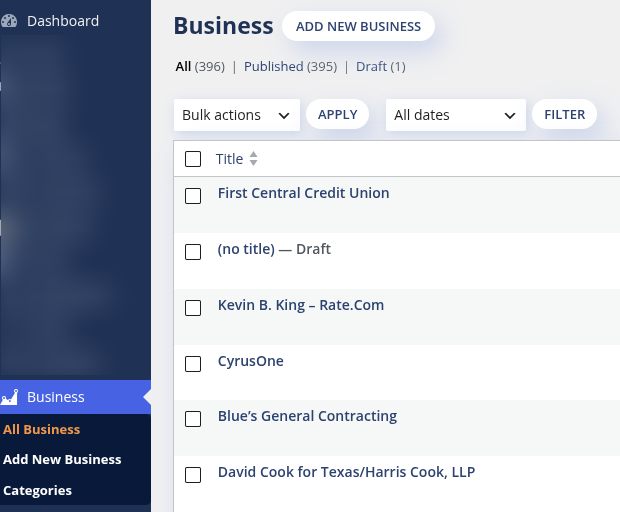
In the left navigation sidebar, click on Business.
Click the ADD NEW BUSINESS button at the top of the page (or click Add New Business in the left sidebar menu).
Step 2: Enter the Business Details
Fill out the designated fields for the listing:
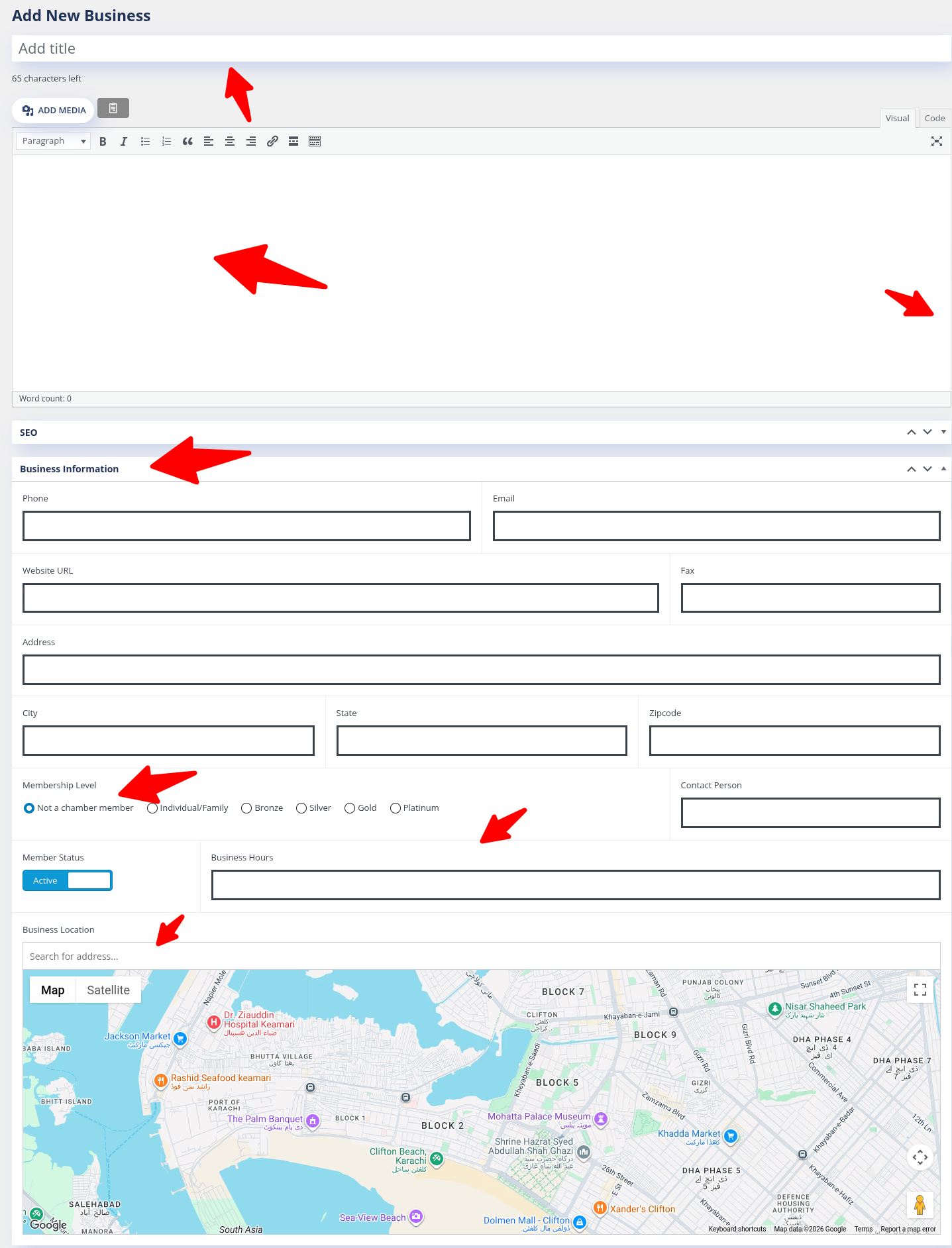
Business Name (Title): Enter the full name of the company in the Add title field at the top.
Business Description: Add an overview, company bio, or special services in the main body text editor below the title.
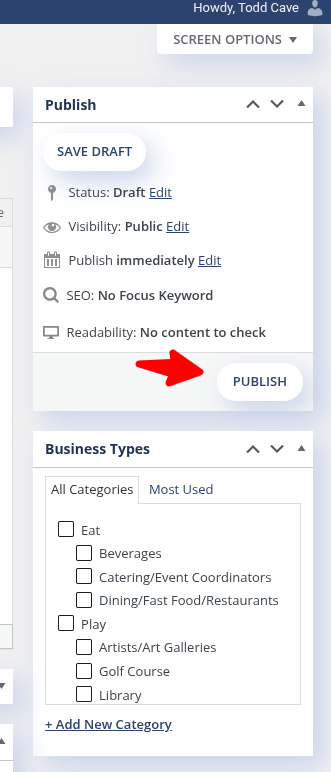
Business Types (Category): In the right-hand panel under Business Types, check the appropriate industry categories (e.g., Dining, Retail, Home Repair) so visitors can filter and find the business.
Business Information: Scroll down to the Business Information section to fill in core contact details:
Contact & Web: Phone number, Email address, Website URL, and Fax.
Mailing/Physical Address: Street Address, City, State, and Zipcode.
Membership Level: Select the correct tier using the radio buttons (e.g., Bronze, Silver, Gold, Platinum, Individual/Family, or Not a chamber member).
Business Hours: Enter the operating days and hours (e.g., Mon–Fri 8:00 AM – 5:00 PM).
Interactive Map Location: In the Business Location box, type the address into the Search for address... bar to automatically place a pin on the interactive Google Map.
Step 3: Publish the Listing
Review your information to ensure accuracy.
In the Publish box in the top-right corner, click the blue Publish button.
The new business listing will now appear live in the public Business Directory!
Tip: If you need to edit an existing business later, navigate to Business > All Business, hover over the business name, and click Edit.